Connecting to Gmail and syncing from the Inbox
Go to the Mailbox you want to connect
In the top left, click the Settings button (the cog wheel).

Click on the Settings card.
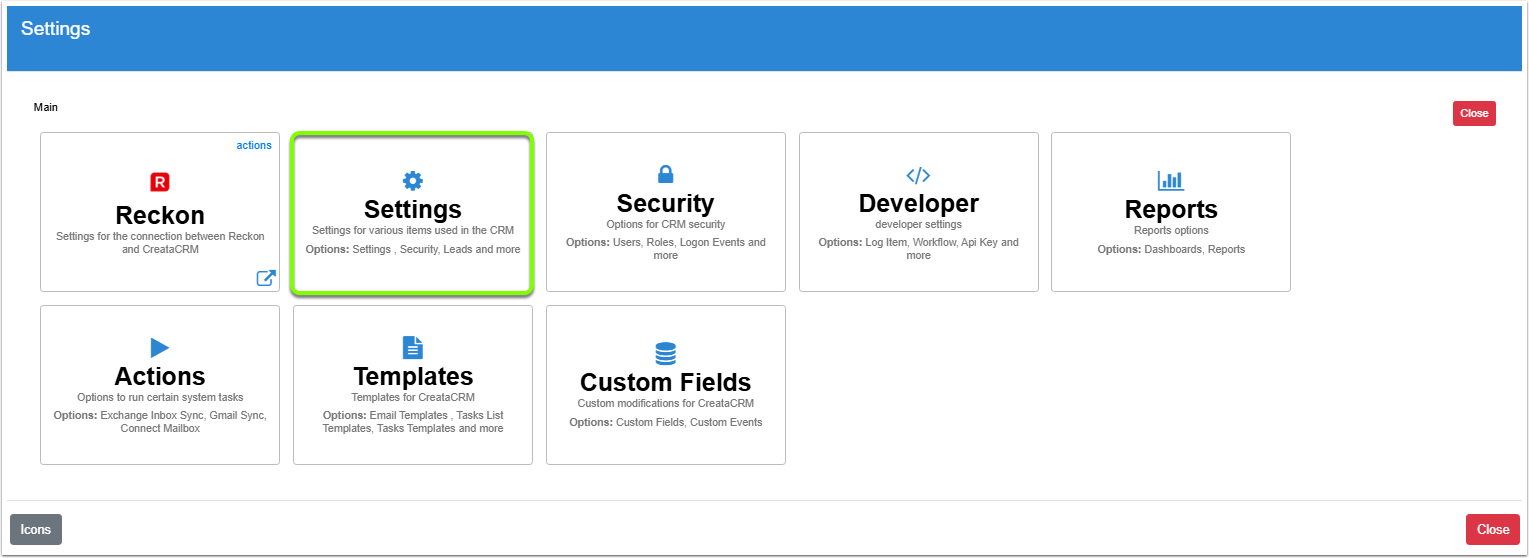
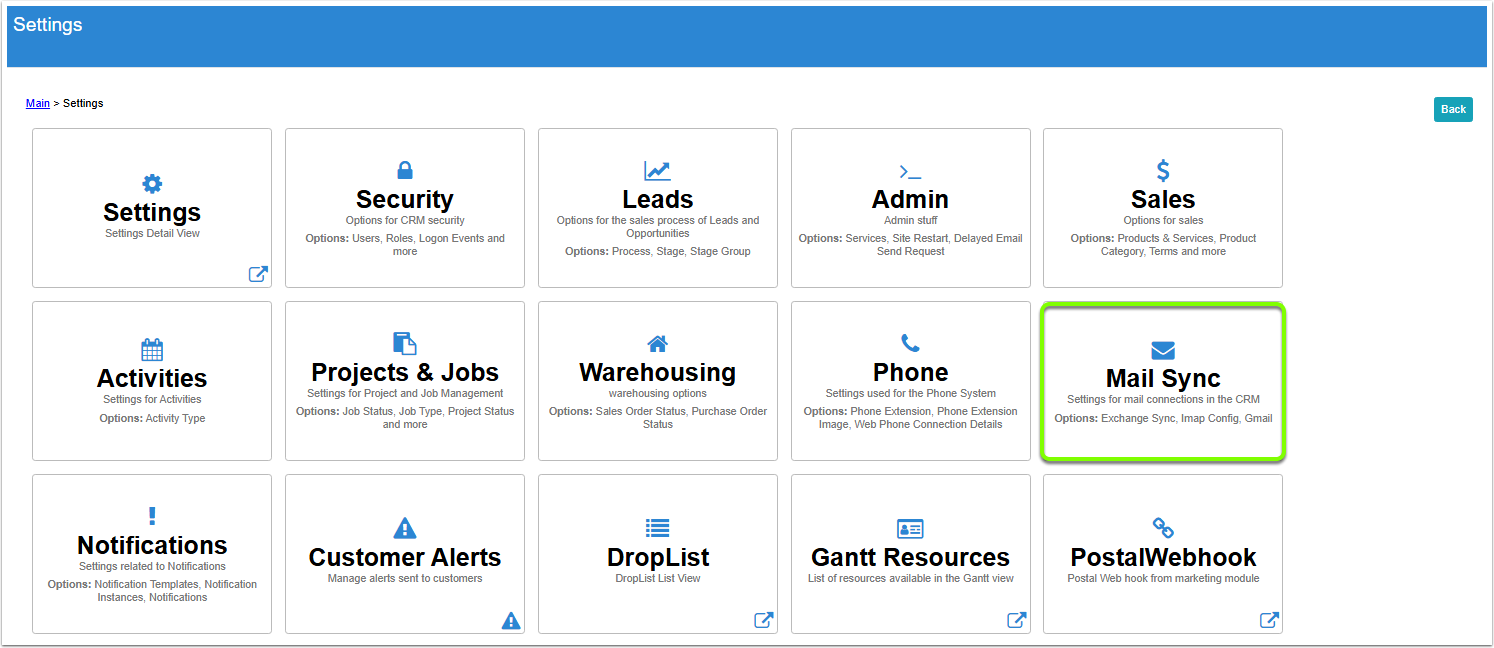
Click on the Mail Sync card.
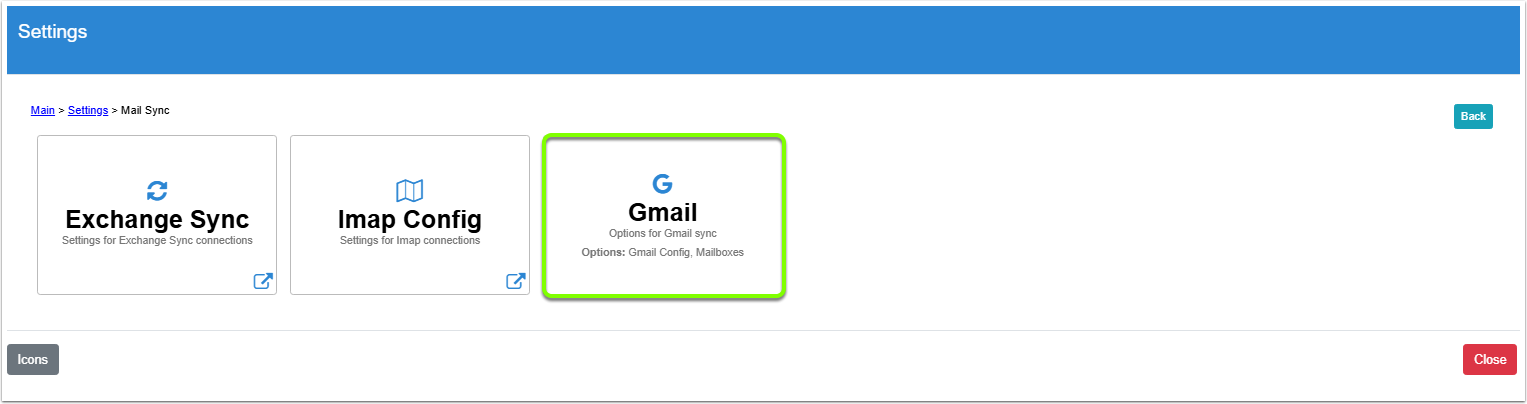
Cick on the Gmail card.
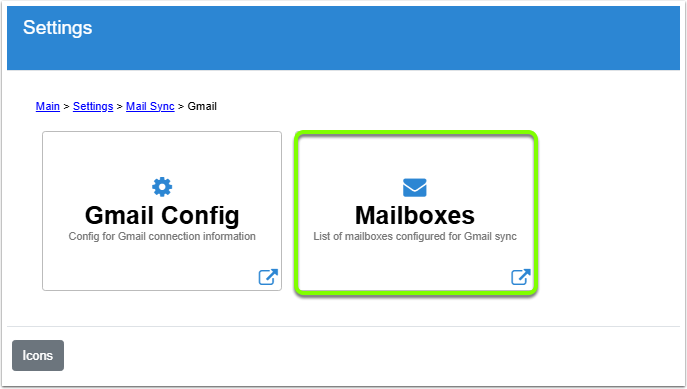
Click on the Mailboxes card
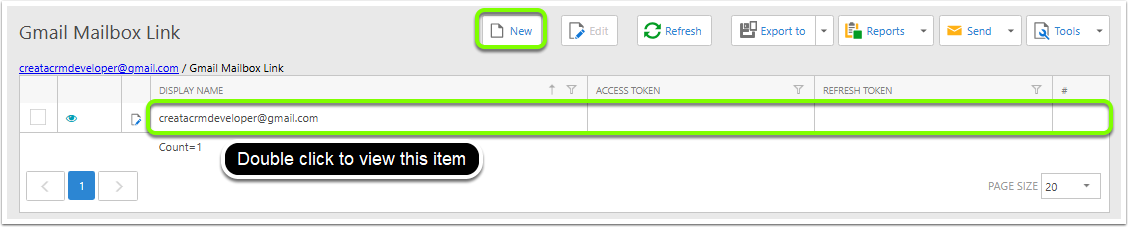
Double click on the item you want to connect, or create a new Mailbox Link by clicking the [New] button.
Go through the Gmail connection process
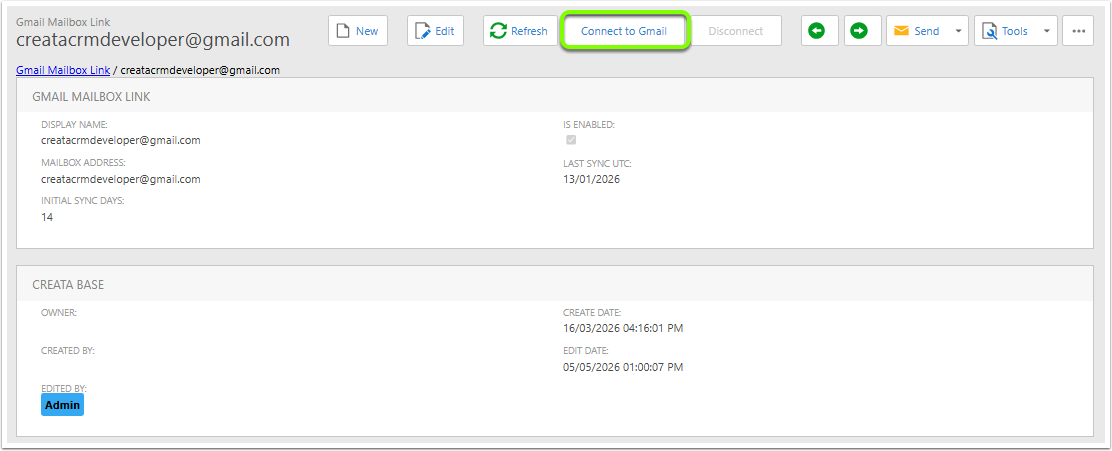
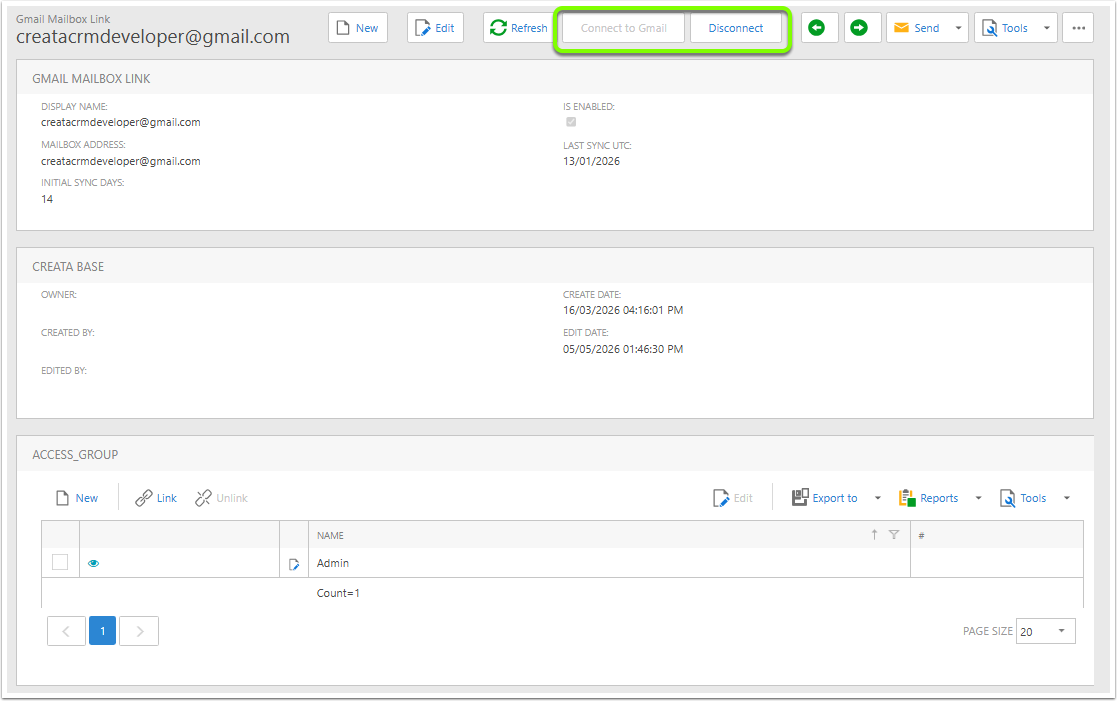
In the Detail View, click the [Connect to Gmail] action.
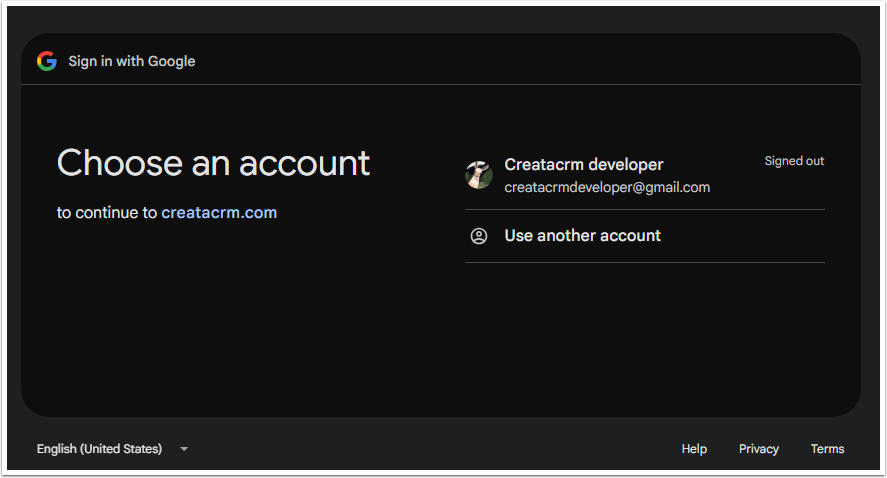
Choose your account to log in with
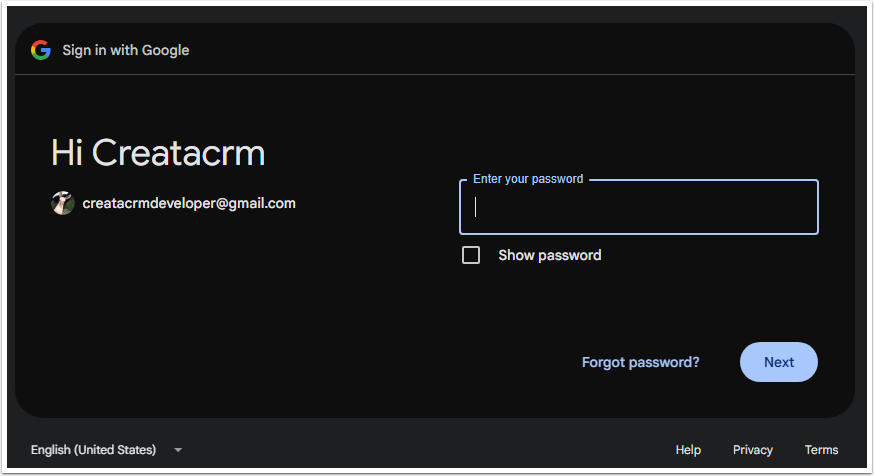
Enter your login details.
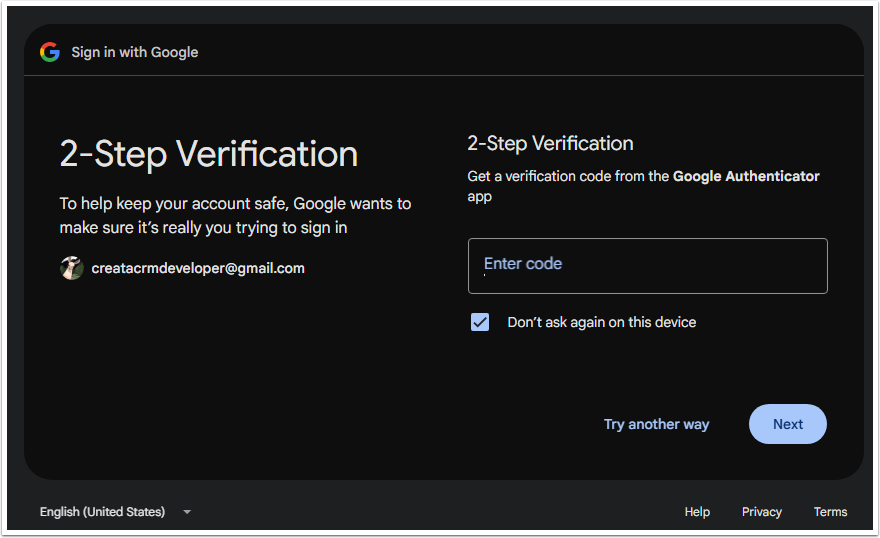
If you have 2 factor authentication enabled on your account, you'll be prompted to enter a verification code.
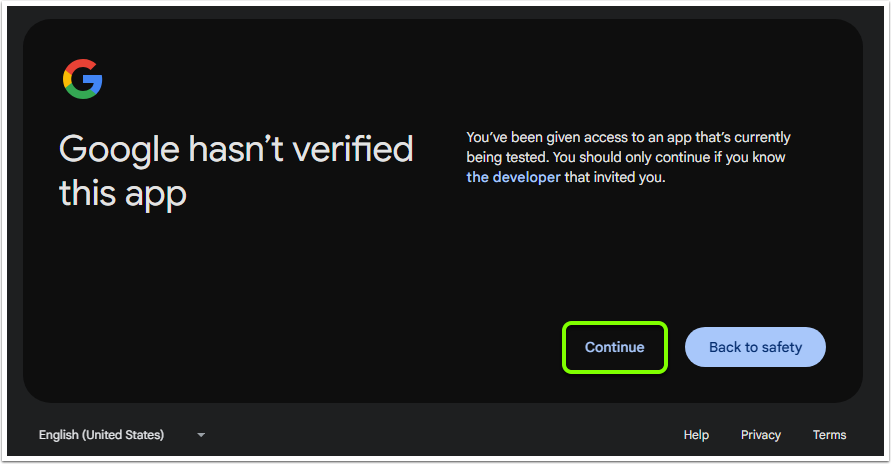
While our integration is in testing mode, you'll see this popup - click Continue
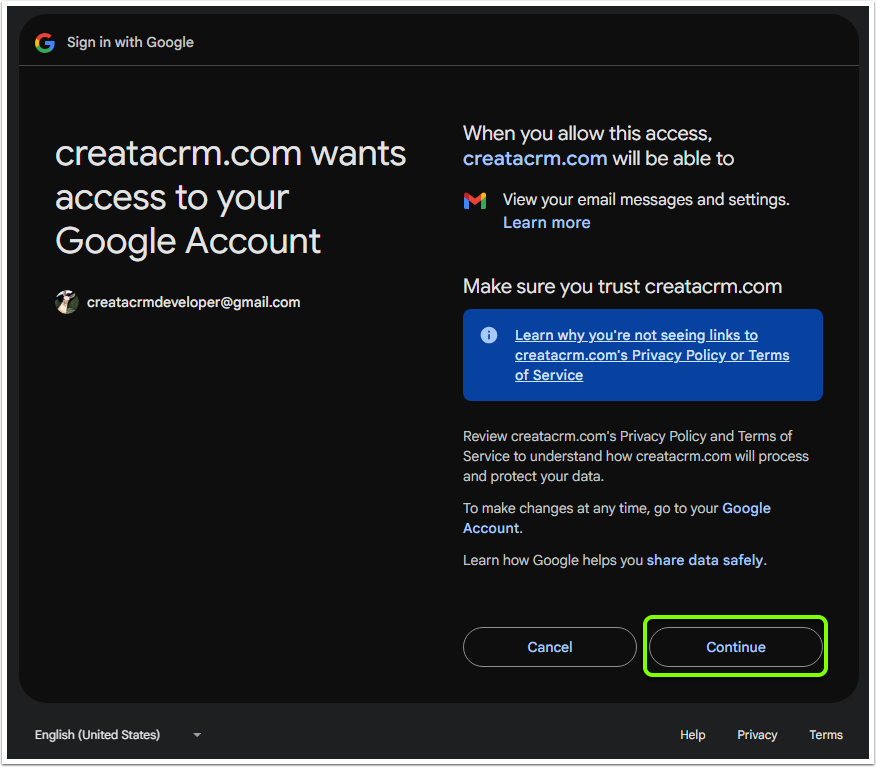
Confirm the access to your Gmail data
If the connection was successful, the [Disconnect] button should now be active -
Syncing data from the Gmail Inbox
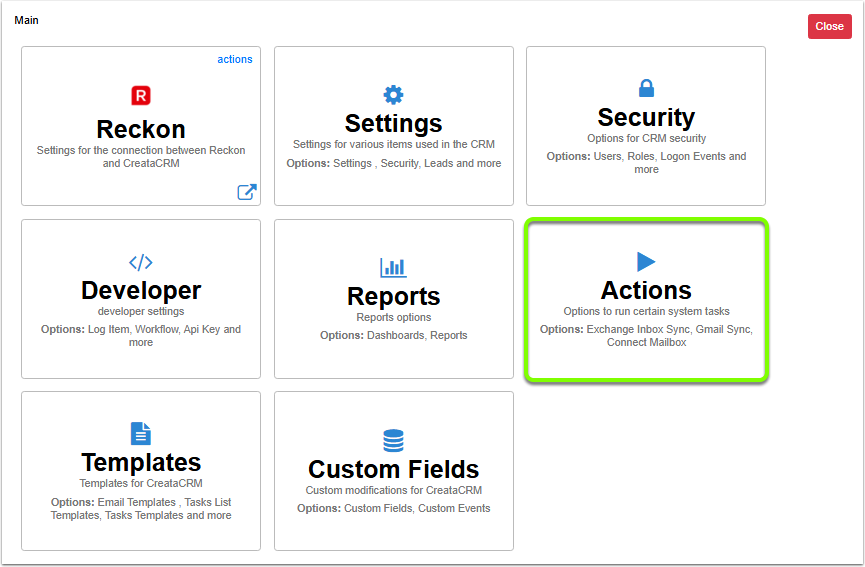
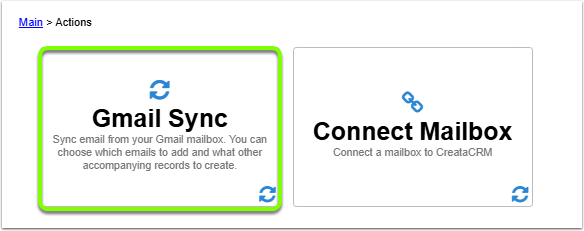
To access the Inbx Sync popup ,click the Actions card, then click Gmail Sync.
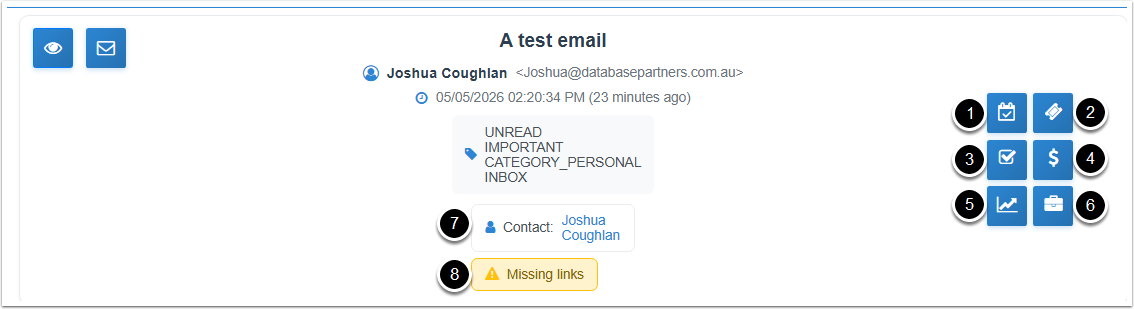
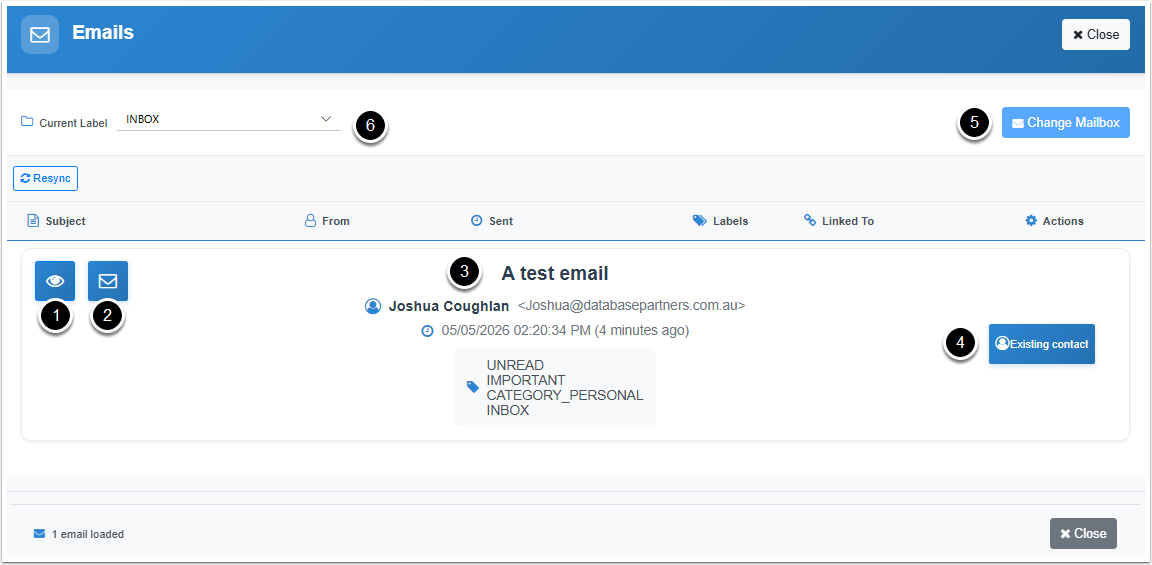
Explanations for each numbered item in the image below.
- View Email - Show the full content of this email.
- Mark as Handled
- Email data:
- Subject
- Sender
- Date
- Labels
- Link Contact button - this allows you to link this item to a contact in the database. You will be shown a list of contacts whose Email matches the email of the sender. You can choose one of these contacts or create a new contact.
- Change Mailbox - If you have access to multiple mailboxes that have been linked to CreataCRM, you can choose another mailbox here.
- Current Label - Filter the displayed emails to only this with a specific label. All emails that end up in the Inbox have the INBOX label.
After selecting a Contact, some of the displayed information changes.
- Activity
- Ticket
- Task
- Sale
- Opportunity
- Job
Clicking these will create a new item of that type, also linking the selected Contact to that item.
Linked Contact - this displays the contact that was selected in the previous step.
Missing Links - Linking a contact on its own won't keep the link to this email. You'll need to link one of the items above to lock in the contact link. Once a linked item has been created, it replaces this warning label.